Mapping Fields
Input Mode
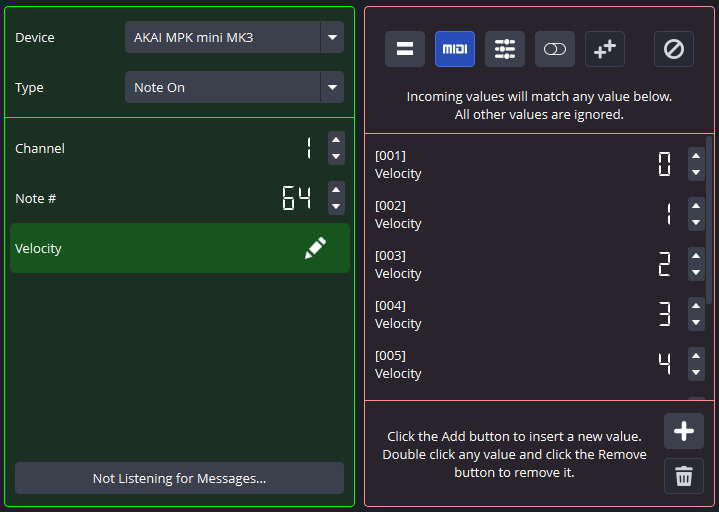
When working with an input  (Mapping) Field, the plugin will provide you with a list of values to edit. When checking for Binding fulfillment, the plugin will detect if any of the values in the list match. If not, the Binding will not be fulfilled.
For example, in the Message above, the Velocity Field in the incoming MIDI message must match any value in the list [0,1,2,3,4,5,6,7] for the Binding to be fulfilled (the last three numbers are not pictured).
An input Mapping Field is required in a Binding to use output Mapping Fields.
You are limited to a total of 128 mappings per Field.
Output Mode
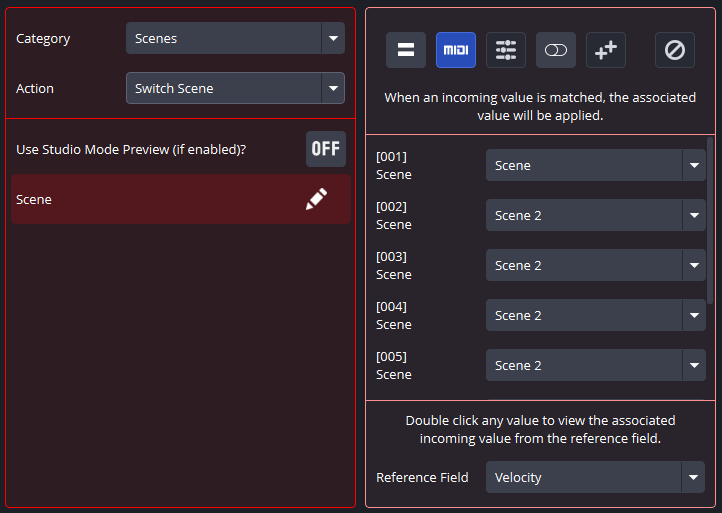
When working with an output (Mapping) Field, the plugin will set the associated Field to the provided value based on the result of the Reference input field.
A Reference input field is just an input field from the same Binding that you can use to associate those input Field values with output Field values. This is very powerful, as it can map just about anything between MIDI messages and OBS Studio parameters.
You can only use this output Field mode when an input Mapping Field exists in the same Binding. The Binding will always fail if there are output Mapping Fields and no input Mapping Fields simultaneously.
Each entry shown will have a numeric ID above it that you can use to map values between the Reference input Field and the output Field. However, to make it easier, you can double click each entry in the list to show the associated value of the Reference input Field. This value is necessary to set the output Field to the selected value.
For example, in the Action above, the Scene Field indicates that the current scene will be switched to Scene if the Binding was fulfilled with a Velocity of 0, and the current scene will be switched to Scene 2 for all other matches.
You are limited to a total of 128 mappings per Field.