Preferences
Here you can find various settings to control the plugin and help when you need it.
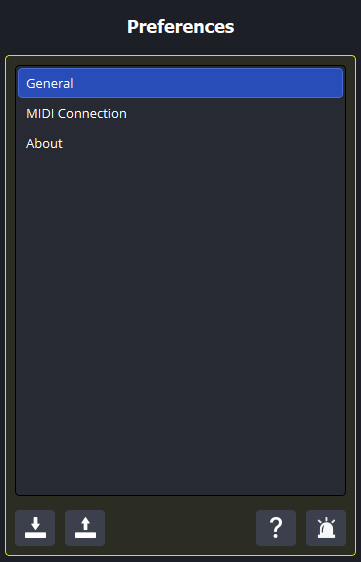
General Preferences
Clicking the  button will ask you to save your plugin configuration file on your device. This is useful when you would like to backup your current configuration or transfer Bindings across different OBS Studio setups.
Clicking the  button will ask you to load a plugin configuration file from your device. This is useful when you would like to reset your configuration or update your Bindings from another OBS Studio setup.
Importing a new configuration will delete ALL EXISTING Binding Collections!
Clicking the  button will bring you to this guide. Use this button if you are struggling to understand what the plugin is doing.
Clicking the  button will bring you to the Issues page on GitHub. Use this button when you have a technical problem with the plugin.
Make sure you provide a log file and/or a crash report as well as your configuration file along with your issue!
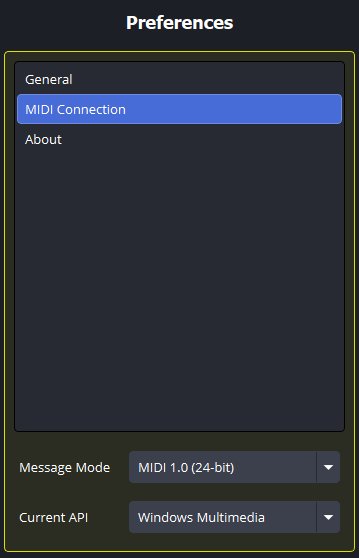
MIDI Connection Preferences
The Message Mode option determines the size of the Message parameters. Either mode will work with any MIDI device - this option only changes what the plugin perceives the MIDI device is using.
If your MIDI device supports the MIDI 2.0 protocol, it is recommended that you switch this mode to MIDI 2.0 to get the most out of this plugin. If your device does not support the MIDI 2.0 protocol or you have no idea what MIDI 2.0 is, it is recommended to leave this option as MIDI 1.0.
The Current API option is just an indicator for the user showing how the plugin is interacting with your MIDI devices. This value is platform-specific, and currently cannot be changed.
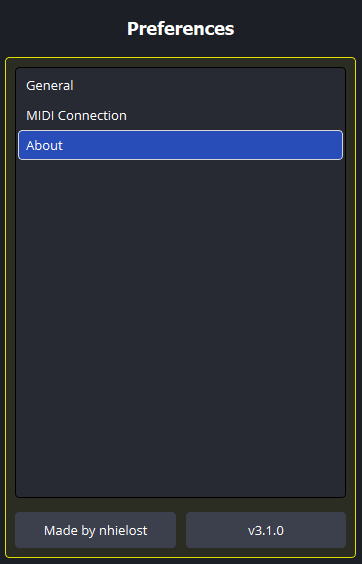
About
The button in the bottom left will lead to the About page, and the button in the bottom right will lead to the Changelog.